STEKEDGE Beta Testing Guidelines
Use this guide to access STEKEDGE, understand the core pages, install the plotting plugin, and safely run test cuts during the beta period.
1. Purpose
The purpose of the STEKEDGE beta testing is to gather feedback from real-world use to identify issues and improve usability.
Scope of Beta Testing:
- Pattern Search
- Canvas (pattern viewer and editor)
- Plotting
While the STEKEDGE software includes additional features, the beta testing will primarily focus on the areas listed above.
2. Access
URL: https://app.stekedge.com/
Use the ID and password from your STEK ONE Account.
3. Interface overview
On the left side of the screen, there is a collapsible navigation panel that contains pattern-related pages.
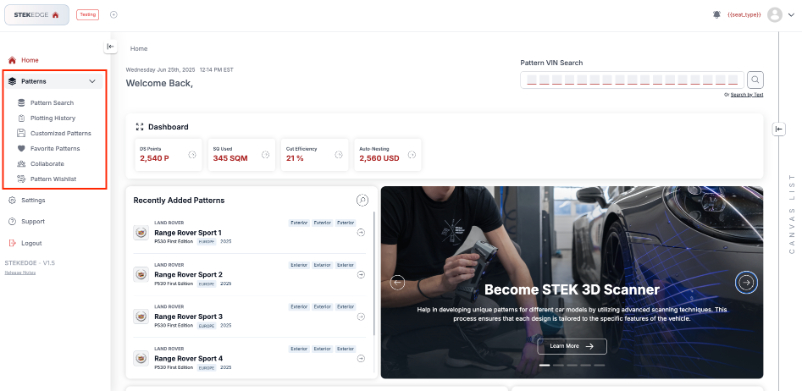
Pattern Search
The Pattern Search page serves as the central repository for all available patterns within the STEKEDGE software.
Pattern search involves 2 steps:
- Find a vehicle
- Find patterns for the selected vehicle
Once a vehicle is selected, its patterns are displayed in 3 sections based on their source (i.e., who uploaded or shared them):
- Customized: Patterns the user has saved to their own Customized Patterns.
- STEK: Patterns uploaded by STEK HQ.
- Community: Patterns shared by users with all other users.
Plotting History
The Plotting History page provides a comprehensive record of all previous plotting activities.
Customized Patterns
Users can edit and tailor patterns to suit their needs and preferences, and save them for future use.
The Customized Patterns page allows users to efficiently organize and store their customized (edited) patterns.
There are 2 main folders for saving customized patterns:
- Team Shared: Accessible to all users within the same workspace.
- Personal: Accessible only to the individual user.
Within both the Team Shared and Personal folders, users can create additional subfolders.
Favorite Patterns
Users can add (bookmark) patterns to their favorites by clicking the heart icon on a pattern. Bookmarked patterns are displayed on the Favorite Patterns page for quick access.
Collaborate
Users can share their customized patterns with others—either with selected users or with all users.
The Collaborate page allows users to view and manage all patterns they have shared with others, as well as those that have been shared with them.
Pattern Wishlist
The Pattern Wishlist page allows users to request patterns for a specific vehicle from STEK HQ and monitor the status of requests.
Canvas List Panel
Canvas is a pattern viewer and editor.
The Canvas List Panel is a collapsible panel on the right side of the screen used for managing canvases. It allows users to add or delete patterns from the selected canvas and manage multiple canvases simultaneously.
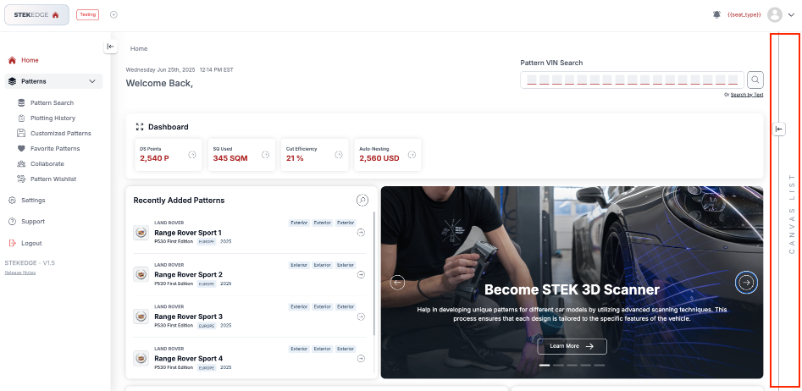
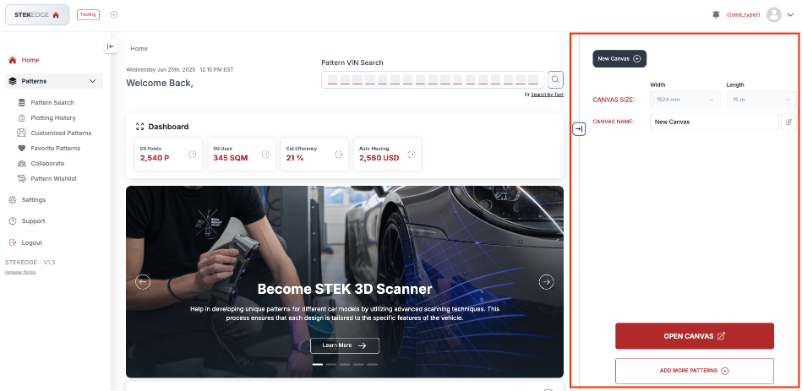
Users can access the Canvas List Panel from any pattern-related page and add patterns from various pages to the same canvas.
4. Pattern database
The pattern database is currently limited to patterns that include PPF and Window Tint patterns.
The pattern database will be updated based on beta testers’ requests. If you would like to test a specific pattern using our software or perform cuts with it, please send a request to support@stekedge.com. If the pattern is available, we will upload it to the system.
5. Plotting
As a beta version of the STEKEDGE pre-cut software, the plotting functionality is still undergoing testing and improvement. Please keep the following in mind when using the plotting feature:
- Graphtech via USB
- Gunner via USB
⚠️ Pattern Accuracy
- Some patterns may not be completely accurate or final.
- Fitment issues or alignment discrepancies may occur.
- Please double-check dimensions and outlines before proceeding with live cuts.
⚠️ Plotter Connectivity
- Connectivity issues with certain plotter models may arise.
⚠️ Software Stability
- As with any beta software, unexpected errors or crashes may occur during the plotting process.
Recommended precautions to avoid material waste or damage:
Do not install the blade during initial test plotting. This allows you to confirm alignment, scaling, and connectivity.
- Use B-grade or scrap film for your initial tests.
- Please make sure your plotter's firmware and drivers are up to date before testing with STEKEDGE.
Plotting Plugin
To use a plotter with STEKEDGE, the plotting plugin must be installed on the computer.
Download plugin
Click on the following link to download the plugin:
STEKEDGE Plotting Plugin - Google Drive
- At least 350MB of free disk space.
- Your plotter and computer must be connected to the same network (if connecting via LAN).
- If you connect the plotter via USB, it must be plugged into the computer where the plugin is installed.
- Your plotter must have the official driver installed so that the operating system can detect the device.
How to install
- Extract the
.zipfile:- If you are using Mac, install the arm64 file.
- If you are using Windows with x64 architecture, install the x64 file.
- Follow the steps to install the plugin on your computer, just like any other Windows application.
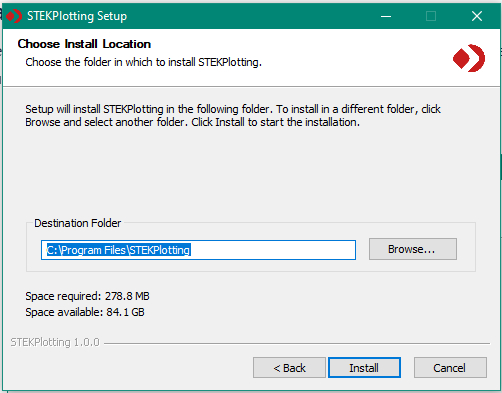

Plugin Setup - Step-by-step instructions
- After successfully installing the plugin, open the application. The easiest way is to launch it from the Start Menu or the desktop shortcut.
- For Mac, please follow the next video. If you are using Windows, please skip.
Mac Installation
For Mac, open your terminal and write the following:
sudo xattr -d com.apple.quarantine Log in to the Plugin
Then, input your computer password.
- Log in using your STEKONE account.
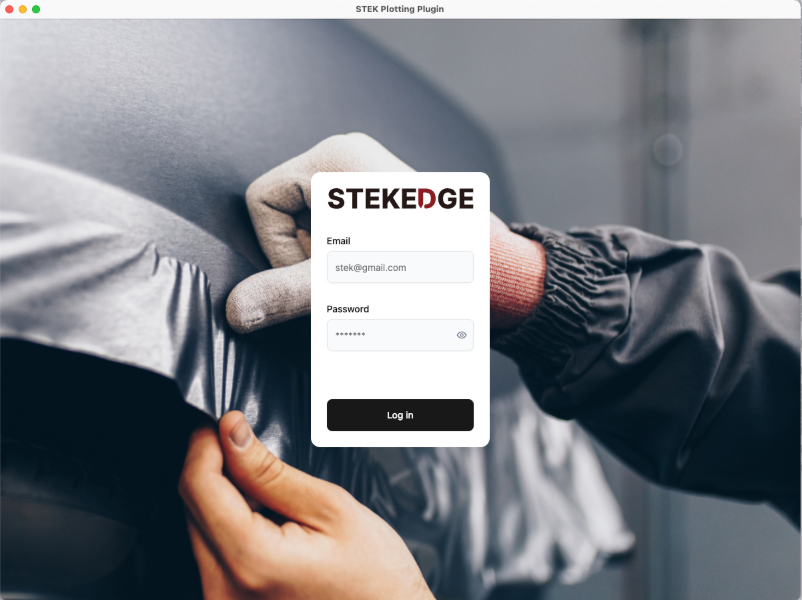
- After you log in successfully, the plugin will ask you to confirm whether you allow it to lock your machine. The machine information will be saved during your first login. For security reasons, you will not be able to log in from another machine.
- Click “I understand, lock this machine”and proceed to the home screen.
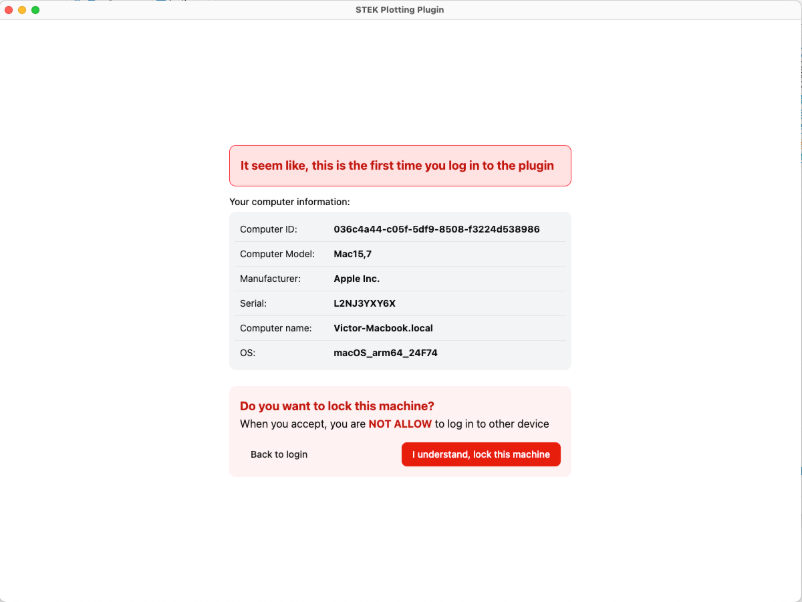
The home screen displays all previously added plotters and their status (Connected or Disconnected).
Add a New Plotter via USB
Before selecting USB, make sure the plotter is connected to the computer via a USB cable.
- Click “Find USB devices” to find available plotters on your machine.
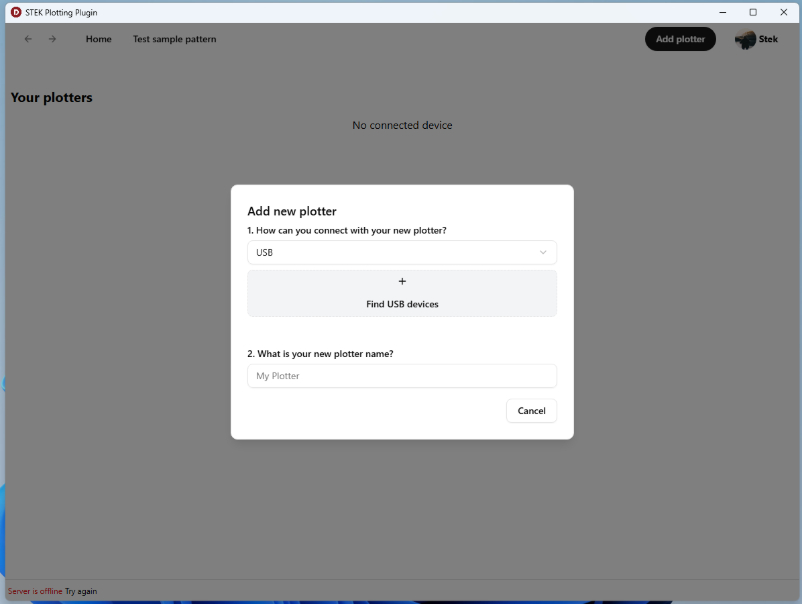
- Select your plotter and data type. Data type is usually RAW or TEXT.
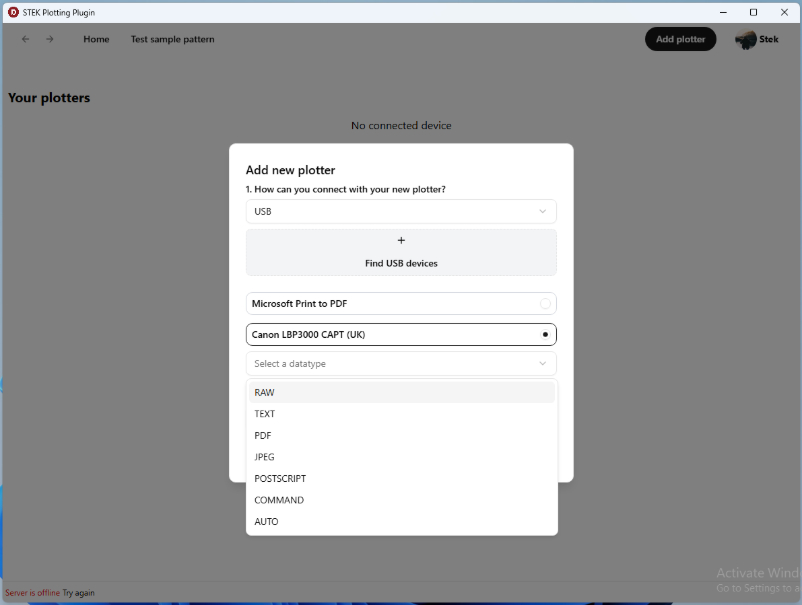
- Enter the plotter name and click “Add this plotter.”
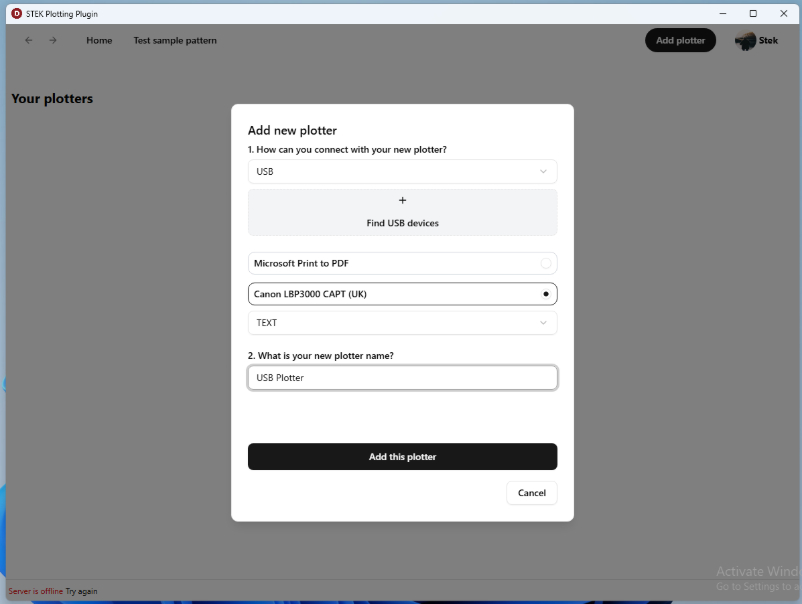
- Your plotter has been added successfully.
Switch to HPGL Command on the Plotter
Please follow these instructions to set up the plotter command language. The plotter must be set to HPGL to ensure proper communication between the plugin and the plotter.
How to set the command language on the Graphtec FC8600
6. How to report bugs and provide feedback
Bug reports and feedback can be submitted through support@stekedge.com
Was this article helpful?
That’s Great!
Thank you for your feedback
Sorry! We couldn't be helpful
Thank you for your feedback
Feedback sent
We appreciate your effort and will try to fix the article